Introduction
WebJobs is a feature of Azure App Service that enables you to run a program or script in the same instance as a web app, API app, or mobile app. There is no additional cost to use WebJobs.
You can use the Azure WebJobs SDK with WebJobs to simplify many programming tasks. WebJobs is not yet supported for App Service on Linux.
Azure Functions provides another way to run programs and scripts
What a web job can do :
- Image processing ( CPU-intensive work) .
- Queue/blobs/notification processing
- Example: when a new image is uploaded the original will be saved to blob storage and a thumbnail will be generated and used (with saving the link of the thumbnail and original image link to SQL)
As Web Job we can run applications or script written in many popular languages/technologies:
- .cmd, .bat, .exe
- .ps1
- .sh
- .php
- .py
- .js (using Node.js)
- .jar
Job modes
Each Web job can be configured to run in one of the following modes:
1. Continuous – runs all the time, analogy to Windows Service configured with auto start option is in place. Hosting environment monitors the job status and brings it up when process is down. (NOTE: With the current preview, this works properly on standard web sites with ‘always on’ setting. Caution is required when we scale the site up from Standard mode – Web Jobs will be terminated when there is no request for 20 minutes)
2. Scheduled – runs at particular times.
3. On Demand – runs when started manually…
Demo :
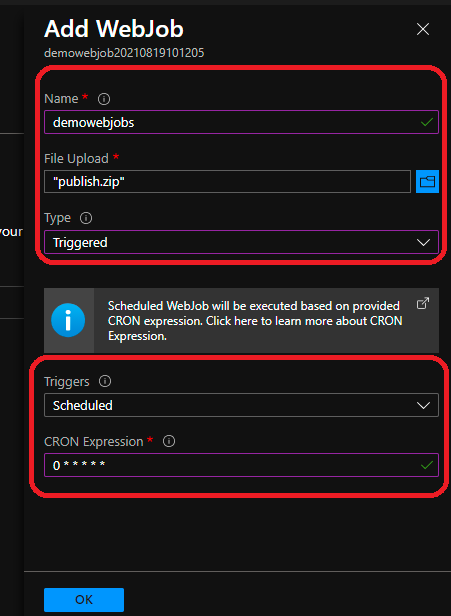
We are going to create a basic sample app that will insert a row to an SQL table and will be scheduled to run every minute.
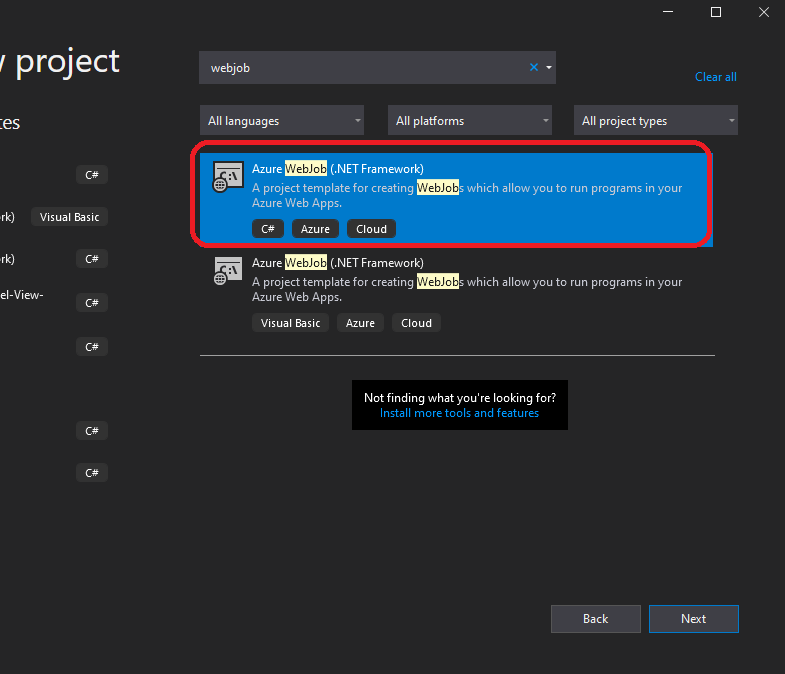
For that, we are going to need first to create our project using the visual studio :
using Microsoft.Extensions.Logging;
using System;
using System.Data.SqlClient;

namespace test
{
    class Program
    {
        private ILogger log;
        static void Main(string[] args)
        {
            Console.WriteLine("Hello World!");

            string connString = "";
            Console.WriteLine($"C# Timer trigger function executed at: {DateTime.Now}");

            SqlConnection conn = new SqlConnection(connString);

            try
            {
                Console.WriteLine("Openning Connection ...");

                //open connection
                conn.Open();
                string insert = "INSERT INTO checkcontainers (name ,timing) VALUES (@name,@time)";
                string name = "demo at";
                string time = System.DateTime.Now.ToString();
                using (SqlConnection connection = new SqlConnection(connString))
                {

                    connection.Open();
                    using (SqlCommand command = new SqlCommand(insert, connection))
                    {
                        command.Parameters.AddWithValue("@name", name);
                        command.Parameters.AddWithValue("@time", time);
                        command.ExecuteNonQuery();
                        command.Dispose();

                    }
                    conn.Close();
                }

                Console.WriteLine($"C# Timer trigger function end executed at: {DateTime.Now}");

                Console.WriteLine("Connection successful!");
            }
            catch (Exception e)
            {
                Console.WriteLine("Error: " + e.Message);
            }


            Console.WriteLine("All Records inserted Successfully");

            // Console.Read();

            // wait 2 seconds before closing Console Application
            System.Threading.Thread.Sleep(2000);


        }
    }
}
Now we have our project ready, there is many ways to publish it, and I’m going to use a classic way which is to publish it to a folder and I’m going to zip that folder.
Now after we have our zip file, we need to have app service and web app running and there we look for web jobs :
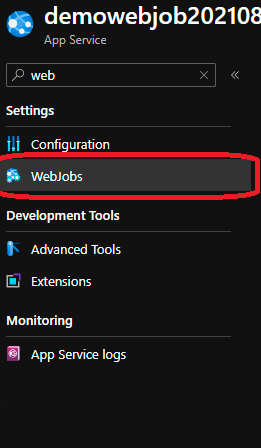
and now we upload the zip file and we configure it to run “Triggered” :
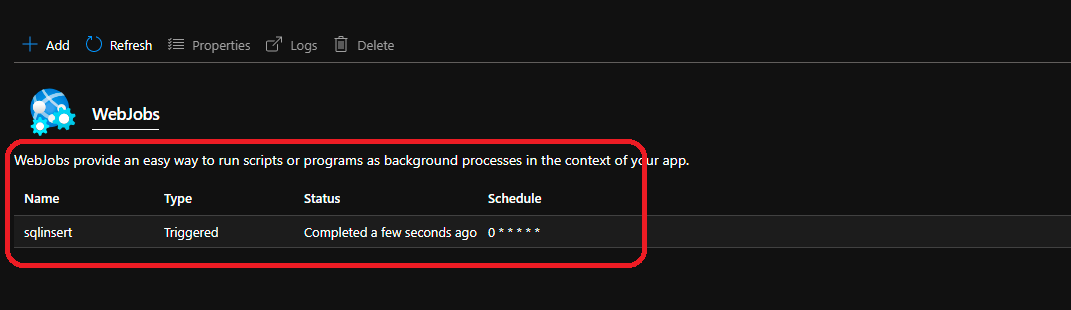 And like that, we have our service up and running and doing its job.